 OpenProgram Docs
Web UI#
Opening a conversation after restarting or refreshing the app shows the latest messages. Within the same run, returning less than one hour after leaving restores your reading state: a conversation left at the bottom follows new messages and delayed layout; a conversation scrolled into history restores that position. Returning after at least one hour away shows latest. The same one-hour rule applies after the app loses focus. There is no timer that moves a conversation while you are reading it; scrolling upward cancels following. Successfully loaded file-change summaries remain available when you return to the conversation, while file history actions still check the current state.
Conversation menus provide Copy link for the selected conversation. The desktop App uses the native clipboard; the browser uses its clipboard API with a selection fallback. A success notification appears only after copying succeeds.
Select text within a chat message and choose Add to chat, or use Quote message in its action row. The quote is appended to that conversation’s draft without sending it. In split view, each pane quotes into its own composer. Choose Edit message on a user message to change its text and URLs, remove existing attachments, or pick, paste and drop images and files. File mentions work with @. Save & resend creates a new branch; the original message remains available. Press Cmd/Ctrl+Enter to save or Escape to cancel. Failed saves keep your edits and attachments for retry.
Open the conversation’s ⋯ menu and choose Auto rename to generate a name from its content using the configured default model. Rename still lets you type a name. The current name remains visible while generation runs; failures keep it unchanged. An explicitly chosen name is protected from background automatic naming. This action is also available in the chat pane’s session menu. It does not send a chat message or run tools.
Each tab keeps its own Back and Forward history, beginning with its default launcher. Navigation normally restores pages inside the selected tab; switching tabs adds no history. Non-conversation destinations can be opened independently from another launcher. Choosing a new destination after Back replaces only that tab’s forward history. History is saved with the tab. Browser controls handle navigation between webpage URLs.
The floating webpage preview in the desktop App displays the same live page. Click, scroll and type directly in it; drag its title bar to move it, or its edges to resize it. While the pointer is held, the current frame moves or scales with the window; live page updates and interaction resume when you release it. The page viewport stays at 1920 × 1080 CSS pixels; resizing the preview changes only its display scale and leaves unused space blank. Page layout and Agent coordinates remain stable. Opening it in a full tab restores normal window sizing and your page zoom. Open page moves the same page to a full tab; hiding the preview keeps the page available in Resources. In a regular browser, the preview embeds a separate page in a sandboxed iframe. Websites may block embedding, and this iframe does not share the desktop Page state; use Open page when needed. The preview hides the page’s outer scrollbar tracks while retaining wheel and keyboard scrolling; opening the full tab restores its normal scrollbars. Moving the preview does not reconfigure page scaling.
Operation history opens a menu in the current page in both the desktop App and browser. Focus its button and press Enter or Space to open it; Escape closes the menu and returns focus to the button.
Opening a conversation already displayed in this window selects its existing tab, including when opening from a launcher or another conversation. Otherwise a session tab or launcher is reused. Back and Forward also select an existing conversation tab when their destination is already open, preserving the source history. Conversation IDs determine uniqueness; identical titles do not. Reloading older duplicate tabs retains the active instance, or the first instance if none is active, with its history and group; other duplicate slots are removed. Draft input and background title updates survive navigation and reload; deleted sessions are removed from every history.
When Files or a file tab is active, Back and Forward revisit the folders and files you opened in the current project. Returning to Files restores its expanded folders and scroll position. Opening a new location after going back replaces the forward steps. File locations belong to this tab’s saved page history, separate from document version History. Refreshing a stale directory listing keeps existing rows visible while the loaded range is replaced.
PDF files open in a continuous reader with page navigation, thumbnails, document outlines, fit-to-width or fit-to-page zoom, selectable text, search highlighting and original-file download. Copying selected text removes layout line breaks by default while retaining paragraphs and ordinary hyphens; disable this option to preserve the original line breaks. Project files support highlights and text notes, saved as standard PDF annotations through the document save and History controls. Attachments and historical versions remain read-only. The PDF decoder is included locally and supports the bundled desktop runtime; opening a PDF does not upload it to an external viewer. Preview input is limited to 64 MiB.
The project menu also reveals its folder in the system file manager, creates a permanent Git worktree, archives its chats, or removes its sidebar entry. Worktrees use a new branch from the current commit and a new absolute folder outside the source Git checkout; uncommitted changes stay in the original folder. Removing a project preserves files, chats, and project ownership. Restore it from the Projects page or reopen its folder. The default home project cannot be removed. Archived chats remain available through the Archived filter; hidden project chats remain in date/flat history.
When the project folder or an additional working folder is inside a Git checkout, its pill in the composer gains a git half showing the branch and the uncommitted line counts as a green and red badge. When the row is crowded, names shorten, then branch names hide, then the badge becomes a half-green, half-red dot. Its menu opens the changes in Review, switches to or creates a branch, and moves the folder onto another worktree or a new one created beside the repository. A started conversation's main folder is fixed, so a worktree chosen there joins as an additional working folder. Create pull request pushes the branch and runs gh pr create --fill; it needs the GitHub CLI signed in and a branch other than the default one. With uncommitted changes, Commit & open PR with the agent fills the composer with an instruction without sending it. Folders in the same checkout share one git half.
Right-click a project or use its ellipsis menu to open its settings, start a chat, pin it, edit it, or assign it to a custom section. The shared project editor changes its display name, text icon or emoji, description, and additional source folders. Source folders default into chats that have no explicit folder configuration; removing a folder does not delete files. Main-folder relocation remains in project settings. Section menus rename or remove sections; removing a section keeps its projects.
Project order and chat order are independent. Use the sidebar filter menu to sort projects by newest activity, oldest activity, name, or manual order. New messages update the project activity time automatically. Pin a project using its pin button to keep it above unpinned projects. Chat direction selects oldest-first or newest-first; title sorting also supports A–Z and Z–A. Dragging switches project order to manual. These view preferences are saved locally.
In the sidebar, choose Group by → Project to show project folders. Drag a project header above or below another project to reorder it. The insertion line marks the destination. You can also focus a project header and press Alt+Up or Alt+Down. The order is saved on this device and survives reloads; sessions remain in their projects. A running conversation keeps a colored sweep only on the selected row; other running conversations show just the three pulsing dots at the left of the title. Conversations waiting for your input display an amber dot, including when pinned.
See tool permission modes and live changes for approval behavior and changes during a task.
The browser interface covers all of OpenProgram's daily operations: chatting, managing functions and programs, configuring providers and MCP, browsing memory and projects. This page walks through each page by route and describes the chat page in detail.
Start it:
openprogram web
Open http://localhost:18100 in a browser. The page is a static export served by the local FastAPI worker itself — /api, /ws, and the UI all live on the same single port (18100 by default). All data comes from the worker; sessions are shared with the terminal TUI and CLI one-shots, see the interfaces overview. To change the port, use openprogram ports --port.
File operations#
Copy and Cut retain the source project. Paste is available only in that project; switch back to the source project to use it. Refresh repeats an active file search.
Deleting a file or folder moves it into OpenProgram's recoverable storage. Run openprogram trash list to find its entry, then openprogram trash restore <entry_id> to restore it. Restoration refuses to overwrite an existing path. Deleting or renaming a symbolic link operates on the link itself, not its target.
If a text file has unsaved changes, deletion asks whether to save, export or discard them. Export starts a browser download and retains the local draft because the browser does not confirm download completion. Reopen the file after restoring it to recover the retained draft.
Chat page (/chat, /s/<session-id>)#
/chat is the main chat interface; /s/<session-id> is a direct link to a single session. Switching sessions does not reload the page, and the WebSocket connection stays open.
Message streaming#
After a message is written to the connection, its text appears in the conversation and the submitted composer text clears immediately. The message remains pending until the server confirms receipt; confirmation updates the same message. A reply placeholder then appears, and text, thinking, and tool-call blocks stream over WebSocket in arrival order. When several agents write into one session, each assistant message carries the producing agent's avatar and name.
Messages during a turn#
While a turn runs, the key you send with decides where a message goes. Enter or the send button steers: the message is added to the current turn. Cmd+Enter (Ctrl+Enter on Windows and Linux) queues it: queued messages keep their order and each starts after the preceding turn finishes. Steering and a queued message's Add to this turn action interrupt the response being generated (text, reasoning, or a tool call whose arguments are still being written), retain the text and reasoning already generated, and continue the same turn with the instruction. A tool call that was still being written is dropped, never run. Tools that already started and structured output receive the instruction at their next safe point; a started tool is not cancelled. Steering does not change the model, tools or permission settings. Turn off Steer interrupts the current response (execution.instant_steer) in Settings to make instructions wait until the current response ends. Stopping an execution remains a separate composer action. A pending instruction cancelled by Stop stays in the queue as an unsent draft until you explicitly retry or edit it; it does not automatically start another turn. Partial replies remain in conversation history after stopping and reloading.
When a supplement is consumed, it appears between the earlier and later parts of the reply. Receipt checks keep one stable waiting label; they do not restart the sending indicator. Older history without a saved boundary shows the supplement before its reply.
If an instruction cannot be added to the current turn, its message remains queued. If delivery cannot be confirmed, the row stays visible and retries the same command to avoid duplicate delivery; it does not automatically resend as a new turn. Steering accepts up to 4,096 characters; longer messages remain queued. Ordinary unsent queues are stored in the current window's memory and are lost on page reload. Pending text steering commands, including unconfirmed delivery, survive a same-window refresh when session storage is available; confirmation reuses the original command. Stopped steering drafts also survive refresh. Version retries remain bound to the original execution: if that execution has been replaced, the instruction stays unsent until you retry or edit it. Messages with attachments also enter the queue and wait for an ordinary turn; they cannot be added through text-only steering. Queued messages stay together in one card above the input. The heading shows how many are queued and how many are being added to this turn; click it to collapse the card. Each message is one line with a tag: This turn while it is being added, Next turn while it waits, Not sent or Unconfirmed after a failure. Hover a line for its time and actions. Click its text to expand the full message and its attachments, then click an attachment card to preview it. Clear all removes every queued message except those being delivered or edited. Edit a queued message to change text, add files, or remove attachments; Save keeps its place in the queue and Cancel keeps the previous content. Editing holds that message until you finish. Remove withdraws only that queued message. Messages whose delivery is in progress or unconfirmed cannot be edited or removed. Native document attachments use the same read-only preview as project files.
Stopping and reconnecting#
A failed history read shows a retry button while keeping cached messages visible. Reconnecting reloads visible panes. History requests expire after 15 seconds; retrying a read does not resubmit your message or restart a function. Late read responses cannot replace a newer request or erase live progress.
If a history snapshot and its reading position are no longer available, automatic paging stops. Retry history rereads the current position without the expired cursor; Go to latest history explicitly opens the latest history window.
After reconnecting, the selected conversation loads before saved execution recovery. Background recovery uses compact execution snapshots, processes one request at a time, and does not repeatedly reload the transcript for executions that already finished. Missing live updates are reconciled with the current execution state. Viewing history never resumes or re-executes a task.
Use Cancel execution in the composer to stop the current execution. Refreshing or reopening a session restores the active execution and its cancellation controls, including executions resumed after an approval wait. An execution can remain active while no new output arrives; silence alone does not end it. Completed executions do not remain active because of an obsolete worker registration.
Thinking, partial replies and tool steps are saved while a response is running and restored when you refresh. A failed response keeps those steps alongside its error notice; stopping a response also keeps the progress already received.
Local shell commands stop their process group before reporting cancellation. Resumed conversations persist the original assistant as cancelled and return the session to idle, so reloading preserves the stopped state.
While waiting for the first reply content, the existing thinking placeholder uses a new double-ring loading mark. Execution summaries, function steps and reply text add no double-ring indicators. Colors follow the theme, and reduced-motion settings show a static mark.
Collapsible thinking#
The model's thinking process renders as a collapsible block, collapsed by default. While streaming, only the latest line shows; click to expand the full content.
Function-call timeline#
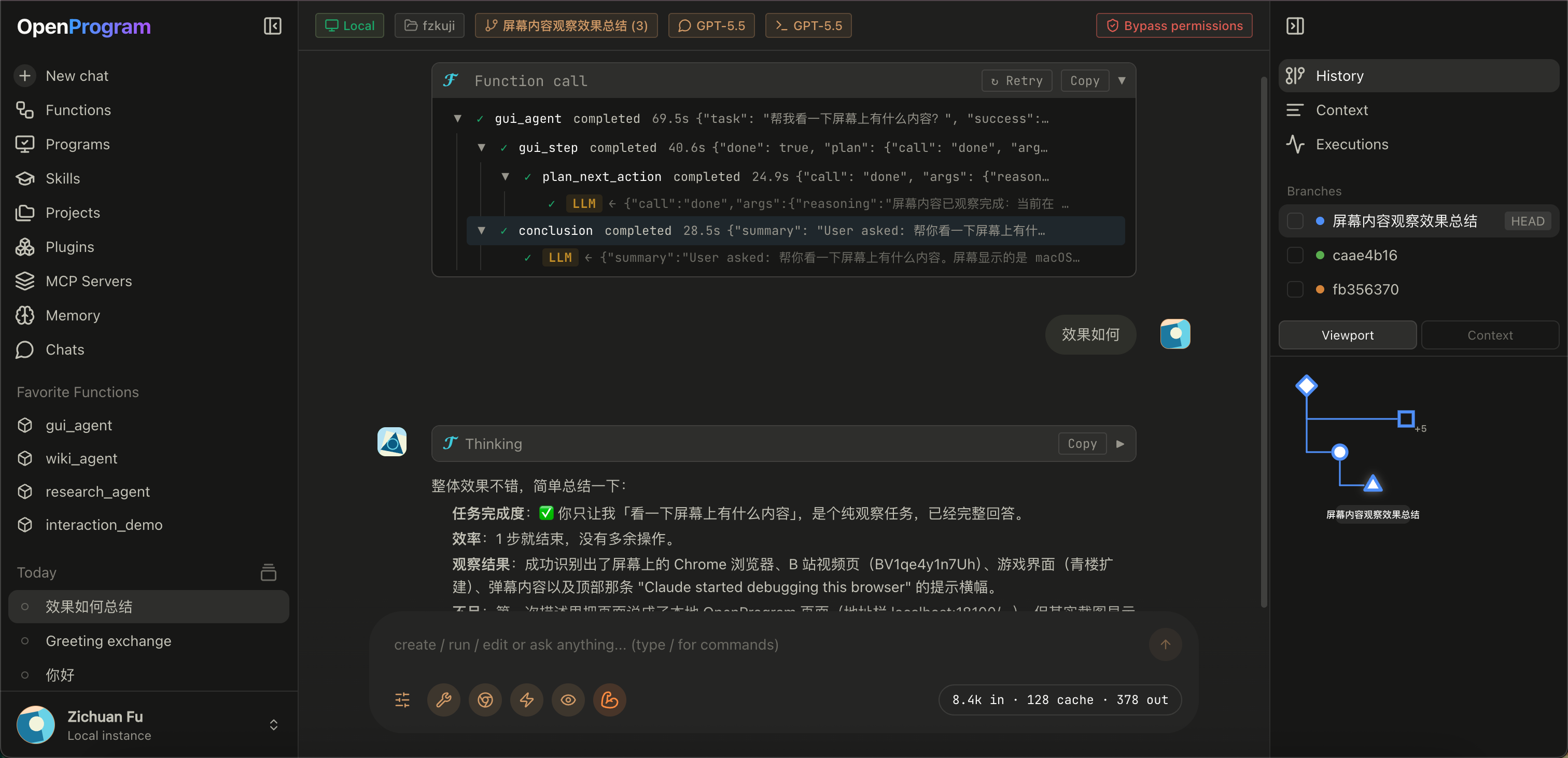
Function and tool calls within each reply turn render as an expandable execution timeline: one row per step, with arguments, output, errors, and duration for each function call. Nested calls display recursively as a context tree, and subagents are steps in the timeline too. Clicking a step opens the execution detail panel in the right sidebar. Functions run manually from the /programs page's Run dialog use the same timeline rendering. Completed replies retain their streamed timeline; older records without ordered blocks use the same collapsible components instead of a separate tool-call table.
Attachments#
Paste a screenshot, drop files, or choose files from the composer menu. Images and files share a compact row in the order added. Each item shows its name, format and size; click it for a preview or details, or use × to remove it.
The composer shows markdown as you type: bold, italics, strikethrough, inline code, links, headings, quotes, lists and fenced code are styled in place, and their markers stay hidden unless the cursor is next to them. What you send is the original markdown. Pasting more than 2,000 characters inserts a Pasted · N lines chip instead of the text; hover it to preview, and Backspace removes it whole. A finished @path mention also becomes a chip. The full pasted text is sent to the model, and the sent message shows the pasted span collapsed as the same chip; click it to expand. A chip shown as lost means its stored text is gone; delete it and paste again before sending.
Images go directly to a model that supports image input, and an original copy is saved with the chat. The app accepts originals up to 32 MiB and proportionally reduces oversized send versions to at most 5 MiB. It rejects unsupported models instead of silently omitting the image.
In the desktop app, text, code, data, PDF and Office files reference their original paths. The assistant reads them with tools when needed; their contents are not automatically added to the prompt. Dropping a folder includes only its immediate listing, capped at 200 entries or 8 KiB. Nested folders are not scanned. Files selected in a browser without a native path are saved by the backend and referenced from there.
Draft attachments stay with their chat across reloads once reading finishes. Sending clears only the submitted items after the backend acknowledges the message. Read errors or rejected sends keep the draft and attachments for correction. If the connection drops before confirmation, the app does not automatically resend the message.
Projects on headless or remote Linux#
Project folders and additional working directories refer to paths on the
machine running the worker. OpenProgram normally opens that machine's native
folder picker. If Linux has no X11 or Wayland display—for example, a server
reached through SSH—the Web UI opens a manual server-path dialog instead.
Enter an absolute path such as /srv/projects/example; the worker verifies
that the directory exists before using it. Cancelling an available native
picker remains a cancellation and does not trigger the manual dialog.
Session branches and the DAG view#
Session history is stored as a DAG, not a flat list:
- The branch menu in the top bar lists all branches of the current session, with checkout, rename, and delete.
- The History view in the right sidebar shows a live mini-DAG of the session: one node per message or function call, colored by branch, with merge and attach operations appearing as nodes of their own. Click a node to collapse or expand its subtree (or jump the chat to that step); double-click a node or edge to check out that branch.
- The Branches panel above the mini-DAG lists branches with a running marker on active ones, and supports multi-select merge — equal merge into a fresh tip, or merge in place into a chosen base branch — as well as attaching branches from another session (cross-session attach).
- Multiple versions of the same message switch via a
< N/M >selector — it only moves the displayed position, never deletes history.
Rewind#
Each message's action menu has "Rewind to here": it truly rolls the session back to that message, and the undone user input is pre-filled back into the input box for editing and resending. The /rewind slash command in the input box is the same feature.
The floating webpage preview fills the space below its compact header, with 10px rounded outer corners and without an outer frame or side and bottom padding. Drag the header to move it; use its edges or enlarged corner targets to resize it. A curved hint appears only at the corner under the pointer; other corners remain unmarked while moving or resizing.
Other pages#
| Route | Purpose |
|---|---|
/agents |
Agents: create, configure and start conversations with Agents (model, abilities, memory, context) |
/applications |
Applications: install software from a local folder, then open, enable, hide from the new tab page, update or uninstall it |
/scheduler |
Scheduler: one-time, recurring and monitor tasks, filtered by type; pause, resume or delete each task |
/chats |
History hub: session list (also /history); Projects and Memory are tabs on the same page |
/programs |
Abilities hub: Programs catalog (call tree / graph). Plugins, Skills, and MCP are sibling tabs |
/skills |
Abilities → Skills: browse installed SKILL.md files, discover and create skills; each skill has a detail page |
/plugins |
Abilities → Plugins: Installed / Discover (marketplace) / Issues |
/mcp |
Abilities → MCP: add from the directory, edit configs, view per-server status |
/memory |
History → Memory: wiki, journal, and core memories |
/projects |
History → Projects: per-project permission rules, default settings, associated sessions |
/settings |
Settings: providers (models and credentials), search, general (including theme, runtime version, and Desktop update status when the Electron bridge is present), system, usage, auth, channels |
Opening /settings directly lands on /settings/general. Model credentials stay on /settings/providers; see configuring models.
In narrow windows (900px wide or less) the left sidebar starts collapsed to its icon rail until you open it, and an opened sidebar closes again after you navigate. Below 760px the Settings navigation starts as an icon rail too, and collapses when the window is resized to that width. A sidebar you open or close yourself keeps that choice.
Tab drag appearance#
In Settings → General, Tab drag appearance controls tab dragging inside and outside the tab strip, together with the split-pane title preview. Adjust Transparency from 0–100%, Background blur from 0–40px, and Shadow strength from 0–100%. Changes apply immediately; the preview shows the same settings as the actual dragged label. The defaults are 20% transparency, 16px blur, and 25% shadow strength. Restore defaults resets these three controls without changing the theme or other preferences.
Preferences are saved in this browser and shared by its same-origin windows. Reloading or switching between light and dark themes preserves the values. At 0% transparency the background is opaque; 0px blur and 0% shadow disable those respective effects. These controls do not change ordinary buttons or Resources drop-target outlines.
Conversation activity#
Activity replaces the separate Running and Debugger entries. It follows the selected conversation only when its tab, visible route and chat state agree; new tabs, unsent drafts and non-conversation pages show an empty prompt instead of the previous conversation. Opening a Program from Abilities starts a draft tab; opening its parameters does not create execution history. Activity counts conversation branches, not messages or execution attempts. Consecutive messages on one branch remain one row; a real fork creates a separate row. Select a branch to inspect its individual executions, called sub-agents and managed background programs. Programs stay under the execution that started them. A called Agent may have a separate execution conversation; only the explicitly linked execution and its descendants are included, not every task in that conversation.
Needs attention groups paused tasks and unconfirmed external actions. Ended attempts whose only missing receipts are model responses appear in History as “Ended · response record incomplete”; they do not ask for confirmation. This also covers an unfinished cancellation whose execution owner has already ended. Cancel is not offered for these ended records unless they have an active child. Actual questions, approvals, unresolved tool actions and active child tasks remain visible. In progress includes running tasks and completed Agents whose programs are still active. History is collapsed by default and counts ended conversation branches. A branch moves between sections as its work changes; past turns do not create additional History rows. Its ordinary status follows the latest execution, while actual outstanding waits and active programs remain visible. Branch details retain all execution records, their start times, sub-Agents and programs. Records whose branch cannot yet be established stay in a separate uncounted group. Longer request excerpts can be expanded in task details. Program rows identify recognized script files, Python modules, or package scripts and retain a per-owner number. Inline code is labelled as a snippet; commands that cannot be classified conservatively retain their executable name. The complete original command remains available in program details. Finishing an Agent does not remove its programs. Refreshing the page or restarting the local worker preserves managed process records and output. Old processes that were never recorded cannot be recovered or assigned retroactively.
Select an Agent to inspect its progress and use the existing execution controls. Pause, Continue, Step and Retry appear only when supported by that execution. Use Add instruction or Create branch to open the shared editor dialog. Published instructions remain read-only; Edit as new draft creates a separately validated revision without changing the published version. Outstanding questions and approvals appear before progress history. Internal IDs, revision data, resource snapshots, effect counters, checkpoints and raw events are under Technical details. A result awaiting confirmation is a blocked execution, not ongoing generation. When it has no active attempt, the composer permits a new message and does not restore Cancel after refresh; Activity retains the unresolved result and its restrictions; provider-only missing response records remain in History. A fetched snapshot does not prove an Agent is currently running.
Select a program to see its command, working directory, environment, start and end times, exit code and recorded output. Stop program targets that program's managed process group, including ordinary background descendants. Other programs are unaffected. Output is bounded; the view explicitly indicates truncation while retaining the process record. Activity updates automatically on execution and job events, when the panel opens, and after connection or page visibility recovers. It has no manual refresh button. Execution snapshots have a 30-second fallback refresh; managed programs and their output are checked every 3 seconds while visible because they do not yet publish a dedicated event stream. An initial read failure displays a loading error rather than claiming older records exist. Programs without an Agent record remain visible and prevent an empty-activity message. A failed refresh keeps the last records, selected program details and output visible with a stale-state notice. Changing the selected program clears the previous details; a successful refresh that no longer includes that program also clears them.
Long-running programs should be launched through the process tool's start action. The launch belongs to the trusted execution and session context. Its detached supervisor retains output and control across worker restarts; ordinary shell background children remain part of the managed group. Programs deliberately detached into another process session, or started outside framework process management, are not claimed as monitored.
To branch an Agent from a saved point, enter instructions in Branch with new instructions, then prepare, check, confirm and publish the revision. Create branch selects a separate paused child; Continue starts it with the published instructions. Its messages and checkpoints are independent of the original execution. Editing unpublished instructions creates a new draft version and invalidates the previous validation and approval. Instruction-only revisions preserve program and runtime contracts; sensitive program, tool, model or output changes retain independent approval.
Retry creates an independent paused Agent execution at the saved point with the original revision. Select Continue to resume it.
Manage project files#
Files uses a path row, an action row, an optional search row, and a column header. Columns are Name, Size, Date Modified and Kind. The narrow sidebar initially shows Name and Size; scroll horizontally to see the other columns. Wider views show all four. The header stays visible during vertical scrolling. Click a column header to sort and click again to reverse the order; search results keep relevance ordering. Click a path segment to locate its folder in the project tree. The action row contains Search, New File, New Folder, Refresh, Sort and display, and Get Info. Sort each directory by name, modified time, size, or file type; choose ascending or descending order, folders first, and whether hidden or Git-ignored entries appear. Settings are saved locally per project and shared by the sidebar and central Files view. Search keeps relevance ordering.
Get Info is available in the toolbar and file context menu. It shows paths, file bytes, timestamps, and read-only permissions. Visible folders without a cached result are scanned in a bounded queue. Finished samples are saved in the local profile and reused after reopening Files or restarting the App, including incomplete samples with skipped entries. Reopening the view or Get Info does not rescan a cached sample. Use Refresh or Recalculate to update folder totals; file changes made through Files also invalidate the shared samples. Folder rows show approximate complete or cached sizes; ≥ marks a partial result. Details show the scan time, skipped entries, and controls to continue, cancel, or recalculate. Scans sum logical file bytes, include hidden files, and skip symbolic links, restricted directories, and unreadable entries. They are samples taken over time, not atomic snapshots or disk allocation measurements. Cached values may be outdated. Complete recent samples participate in size sorting; refresh to apply newly calculated sizes. Unknown and partial totals stay last in their group.
The path uses larger text, and its right-hand copy button copies the full absolute path. Refresh keeps the selected path, expanded folders, and loaded page range. File rows show readable sizes, including empty files; long filenames shrink within the remaining space while the size keeps its full width; hover over a size for its exact byte count.
The sidebar shows only projects with non-archived conversations. Empty projects remain available in the project selector and project management.
Conversation history is stored under the OpenProgram state directory, grouped by a stable project ID. Registration writes a small identity file at <project>/.openprogram/project.json. Keep this hidden directory when moving the folder, including between drives. On startup or project access, OpenProgram looks for that identity under known project parents, within three directory levels and 4,000 entries. It does not scan the whole disk or depend on operating-system bookmarks.
If a moved folder is outside that search area, open its new location once to reconnect the original project and conversations. Opening a copy while the original is still available creates a separate project. Multiple discovered copies require Locate folder. Existing projects whose old identity cannot be verified also need Locate once. Keep the identity file writable during registration and relocation; a damaged or unreadable file produces an error instead of silently changing identity.
While a working folder is unavailable, history remains readable and new tasks in that project wait for a valid location. A different folder at the same path does not inherit the original conversations. A single copy left after deleting the original is treated like a move.
Press a top tab to highlight it; release without dragging to switch pages. Dragging keeps the current page visible. Drop outside the strip to use the existing new-window transfer. While dragging outside the strip, the tab label follows the pointer above the page. Its original position is hidden until the drag ends or returns to the strip. To add an open webpage to a conversation, keep that conversation visible and drag the webpage tab onto Resources (or its open panel). Release to attach the same page. Its top tab and existing associations stay available; a failed attachment leaves the page unchanged.
Long conversations open with a small recent history page; earlier messages load as you scroll. Activity initially reads the task list and loads execution events and debugging details only when you select a task. Brief status refresh failures retry quietly; longer retries use a neutral status notice. An error is shown only when activity remains unavailable without saved records.
Activity also shows in-flight function calls, including foreground shell commands awaiting completion. Expand a function to see its command and start time. Active managed programs appear directly in Running programs and remain inspectable and stoppable after the initiating tool returns.
The preview stays inside its owner conversation pane, including after startup layout restoration and split resizing. Its title bar and resize controls remain outside adjacent native webpages.
In a split canvas with multiple conversations, clicking or focusing a conversation switches Files, Activity, and Resources to that conversation. Project requests and late responses remain scoped to their conversation, even while the main route still points to another pane.
Dragging a pane’s three-dot handle displays the pane as a full tab label with its icon and title. The handle itself does not move with the pointer.
Output file previews#
Completed replies show Open preview cards for local file links and returned attachments. A new reply in the current conversation opens its first supported output beside the chat. Reopening history or receiving a background reply does not open files automatically. Your existing split layout and unsaved preview edits are preserved. Clicking a card opens the file explicitly. Files within the conversation's project use the project editor; other permitted attachments open read only.
A visible preview checks for disk changes and displays File changed when its source is modified or rebuilt. Click Refresh to load the latest bytes. Refresh keeps the previous preview if reading fails and retains unsaved edits until you save or discard them. Completed Goals display a compact status and their recorded active duration below the reply; click the status to inspect the original Goal details.
Tabs for the same project file share its editor and draft. Closing one keeps the other tabs usable. If the same file is visible in two panes, choose Show here to move the editor to that pane.
Closing the tab of a session-associated webpage only hides that view. The same page and its navigation state remain in Resources, including manually opened pages later attached to a conversation. Open in tab reopens that page. Use Close webpage in Resources to actually close it. Closing a standalone webpage with no session association still closes the page.
Failed replies keep their partial answer and function trace. A failure notice appears at the end of the reply; expand Error details to inspect the original message. The notice and details remain available after reloading the conversation.